

logo

Help Center / NetSuite / Getting Started

Logging In and Connecting NetSuite

Logging into NetXcel and adding a NetSuite connection are two separate steps. Here's how each one works.

Logging into NetXcel

Requires NetXcel installed in Excel. Not installed yet? See Installing NetXcel first.
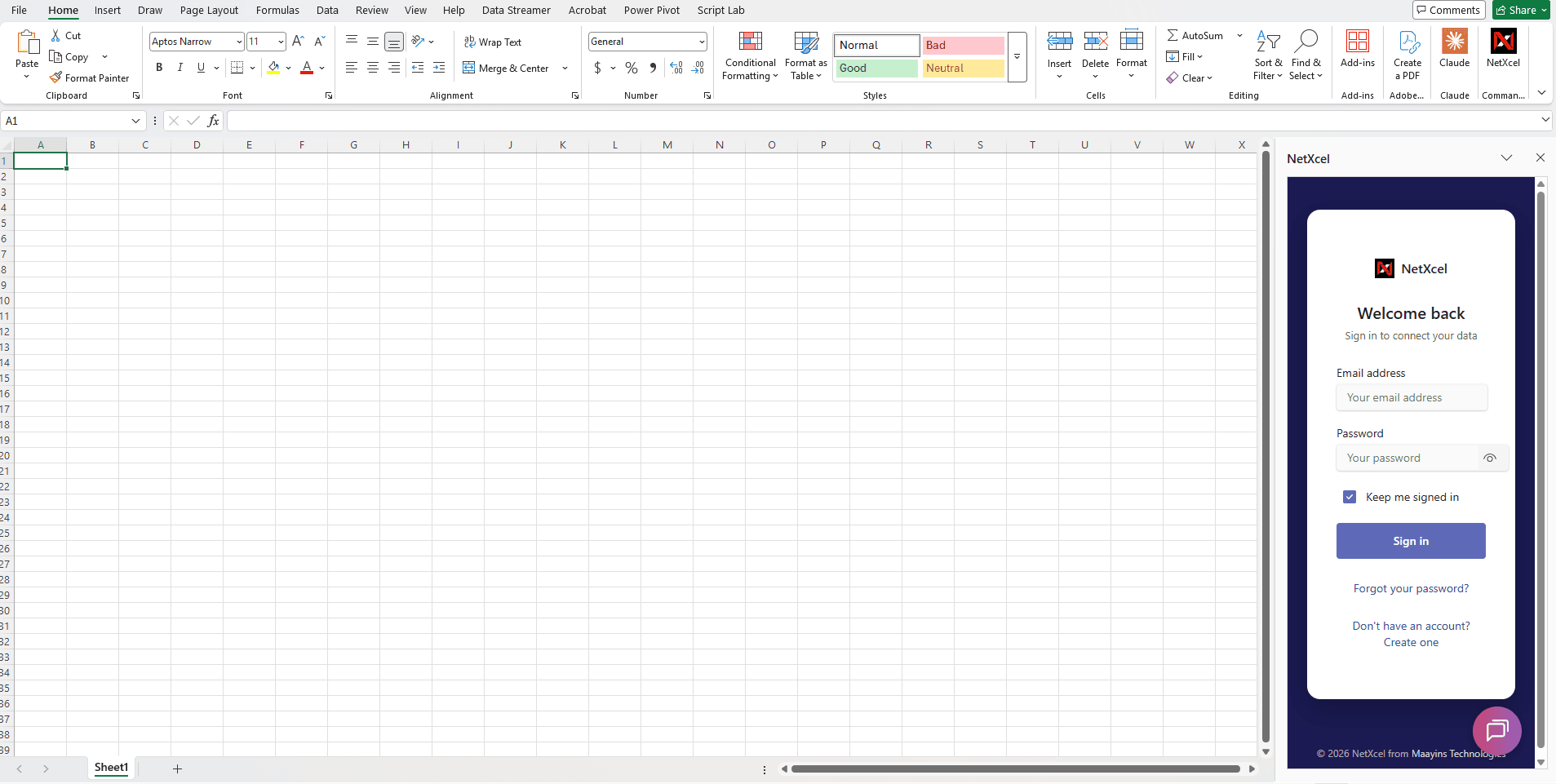
  1. Sign in: Enter your email and password, then click Sign in. No account yet? Click "Create one." Forgot your password? Click the link below Sign in.
NetXcel sign-in screen in the Excel task pane, with email address and password fields, a Sign in button, and links for forgot password and creating an account

Adding a NetSuite connection

Already shared by your admin? Nothing to do, just start using it. To add your own: open the menu, click Add connection, then NetSuite. Pick one of four connection methods. The New Connection dialog walks you through the matching NetSuite steps:

  • Token-Based Authentication (TBA): enable TBA on a NetSuite Integration Record, then enter the Consumer Key and Consumer Secret
  • Machine to Machine: enable OAuth 2.0 with the Machine to Machine grant, then enter the Client ID and Client Secret
  • User Authorization (REST APIs): enable OAuth 2.0 with the Authorization Code grant and add NetXcel's callback URL, then enter the Client ID and Client Secret
  • User Authorization (AI Connector): enable OAuth 2.0 with the Authorization Code grant for AI/MCP access, then enter the Client ID and Client Secret
Choosing How to Connect NetSuite